Livestream (Live Video) has the feature to live from directly built-in devices on your computer without the streaming software's support. Furthermore, this new feature still leverages Mux and its features to provide a smooth experience for users. In this article, we will guide you to set up the transcoder server to enable this feature.
Requirements
- Dedicated server/VPS/cloud server for transcoder server
- At least 8G RAM, 4 vCPUs
- Live Video app version 5.1 or later.
Transcoder server setup
Firstly, the transcoder server had been built and pushed to DockerHub at https://hub.docker.com/r/foxsystem/metafox-transcoder-livevideo. Therefore, you can update docker-compose.yml to have a new service - "transcoder" as below.
docker-compose.yml
version: '3'

services:
    ...
    transcoder:
        container_name: metafox-transcoder
        image: foxsystem/metafox-transcoder-livevideo:latest
        restart: always
        tty: true
        volumes:
            - ./upload:/app/upload
        ports:
            - ${WS_EXTERNAL_PORT:-3001}:${WS_PORT}
        env_file:
            - .env
        networks:
            - metafox-app-tier
Moreover, to make the server operate correctly, you also have to update your .env to adapt a few variables that the server needs
.env
WS_PORT=3000
WS_EXTERNAL_PORT=3001
NODE_ENV=production
JWT_SECRET=transcoderSecret
MFOX_BASE_API_URL=https://yourdomain/api/v1
Given that,
- WS_PORT and WS_EXTERNAL_PORT: defining the internal and external WebSocket server ports.
- NODE_ENV: configures running mode for better performance.
- JWT_SECRET: is the key used for signing and verifying JSON Web Tokens (JWTs). You can set to any random string.
- MFOX_BASE_API_URL: specifies the API URL of MetaFox.
Finally, you can just restart the docker to apply new service by using command
docker-compose up -d
Proxy Setup (Optional)
You can set up web server (NginX/Apache) to proxy to transcoder service with certain domain. Here is the sample Nginx configuration to for transcoder with domain demo-transcoder.metafox.app
server {
    server_name demo-transcoder.metafox.app;

    # You can increase the limit if your need to.
    client_max_body_size 2000M;

    add_header Accept-Ranges bytes;

    location / {
        proxy_pass http://127.0.0.1:3001/;
        proxy_http_version 1.1;
        proxy_set_header Upgrade $http_upgrade;
        proxy_set_header Connection "upgrade";
        proxy_set_header Host $http_host;

        proxy_set_header X-Real-IP $remote_addr;
        proxy_set_header X-Forwarded-For $proxy_add_x_forwarded_for;
        proxy_set_header X-Forward-Proto http;
        proxy_set_header X-Nginx-Proxy true;
        proxy_force_ranges on;

        proxy_redirect off;
    }

    listen 80;

}
Configure MetaFox
Now, let's go to AdminCP of MetaFox to configure Live Video with the transcoder server. Visit AdminCP > App Settings > Live Videos > Settings and configure two settings: Allow Webcam Streaming and Transcoder Server Url (see in image below).
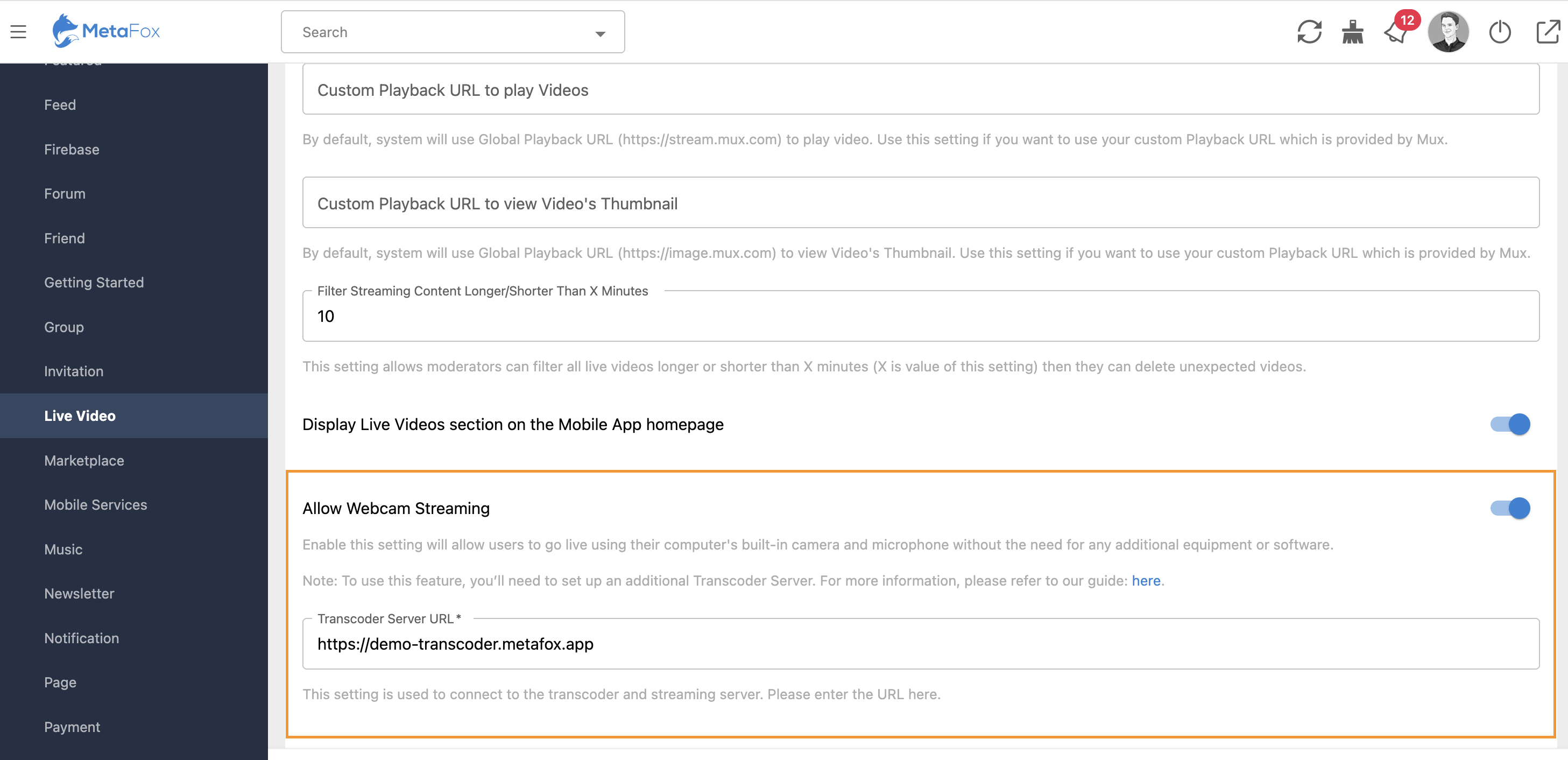
Given that,
- Allow Webcam Streaming: turn on if you want to allow streaming using webcam.
- Transcoder Server Url: the URL of transcoder webserver.